
Connect a client
ChatGPT and Codex
Rendley connects to OpenAI products in two ways: as a custom connector in ChatGPT, or as an MCP server shared by the Codex desktop app, CLI, and IDE extension. Rendley supports both OAuth sign-in and API-key authentication.
The setup below uses the automation endpoint. It gives the model access to your Rendley projects, the editing agent, generative media, model-authored motion graphics, and export. Which endpoint explains the lighter alternative.
ChatGPT (custom connector)
Custom MCP connectors require developer mode. Availability can also depend on your ChatGPT plan and workspace administrator settings.
1. Enable developer mode
Open Settings → Connectors → Advanced and turn on Developer mode. This exposes custom MCP connectors.
2. Create the connector
Back in Settings → Connectors, click Create. Fill in the form:
- Name:
Rendley Automation - MCP server URL:
https://mcp.rendley.com/mcp/automation - Authentication: OAuth
Submit the form to add the connector.
3. Sign in
Click Connect on the Rendley connector. A Rendley sign-in tab opens. Click Allow access to authorize ChatGPT. The connector then shows as connected, with no API key required.
4. Use it in a chat
In the composer, open the + menu and enable Rendley Automation for the conversation. Ask it to list your Rendley workspaces, then try a request from Example prompts.
Codex (desktop app)
The Codex desktop app, CLI, and IDE extension share MCP configuration on the same Codex host. You can sign in with OAuth, or use a Rendley API key. The steps below show the API-key setup, which is useful when you want one static credential that works with both Rendley endpoints.
1. Create a Rendley API key
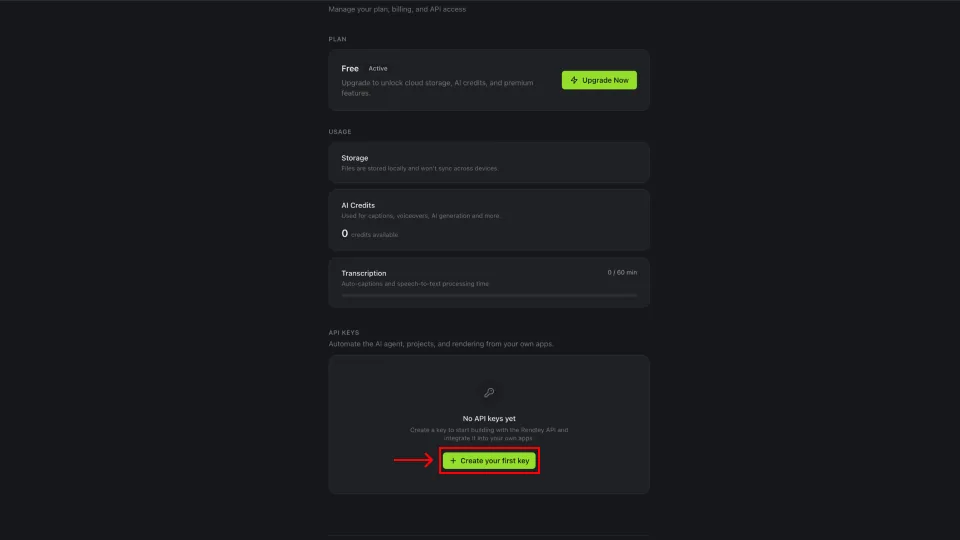
In Rendley, open Settings, scroll to API Keys, and click + Create your first key.
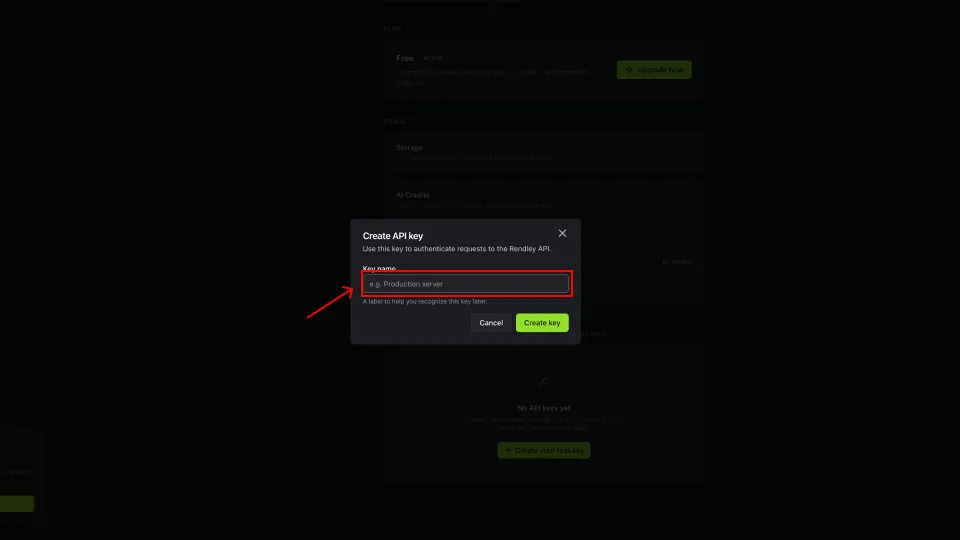
Name the key (for example Codex) and click Create key.
Copy the key now. Rendley shows it once.
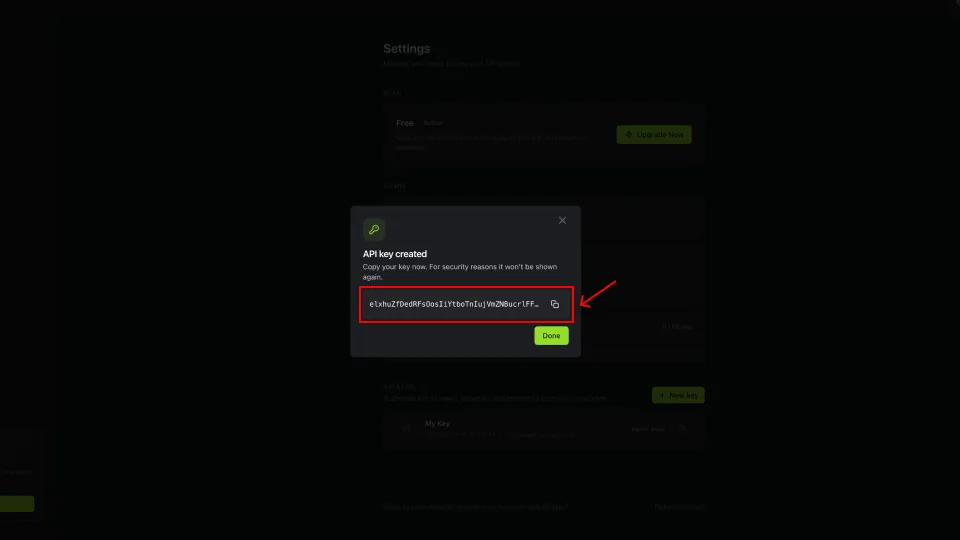
The same key works with both endpoints.
2. Open Codex settings
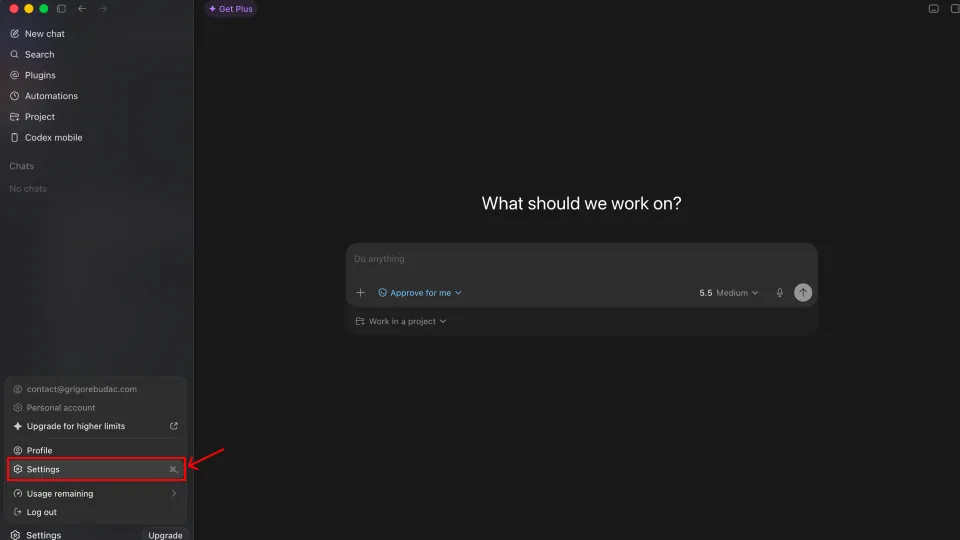
In Codex, click your avatar in the bottom-left, then Settings.
3. Add an MCP server
Under Integrations, select MCP servers, then click + Add server.
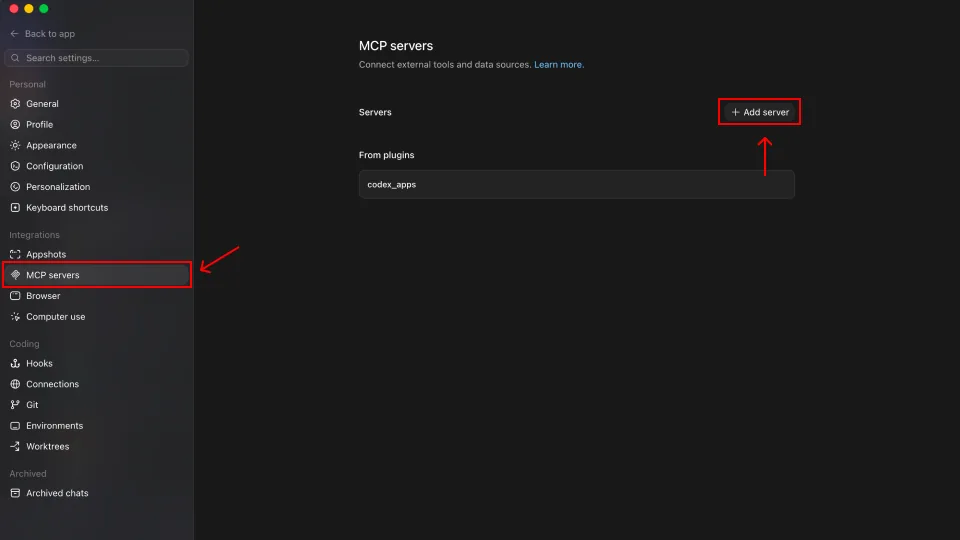
4. Configure Rendley
Fill in the form and click Save:
- Name:
Rendley Automation - Transport: Streamable HTTP
- URL:
https://mcp.rendley.com/mcp/automation - Headers: add a header with key
Authorizationand valueBearer YOUR_RENDLEY_API_KEY
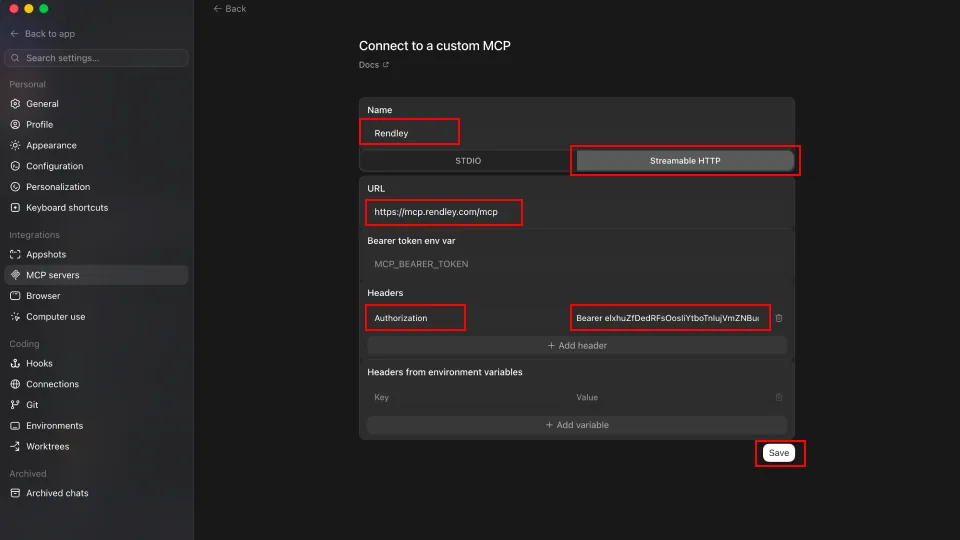
If you also want the lighter project-preparation connector, add a second server named Rendley Drafts with the same header and the URL https://mcp.rendley.com/mcp.
5. Check the server is registered
In a new chat, type /mcp. You should see the Rendley server listed as Authenticated (API key) and Enabled.
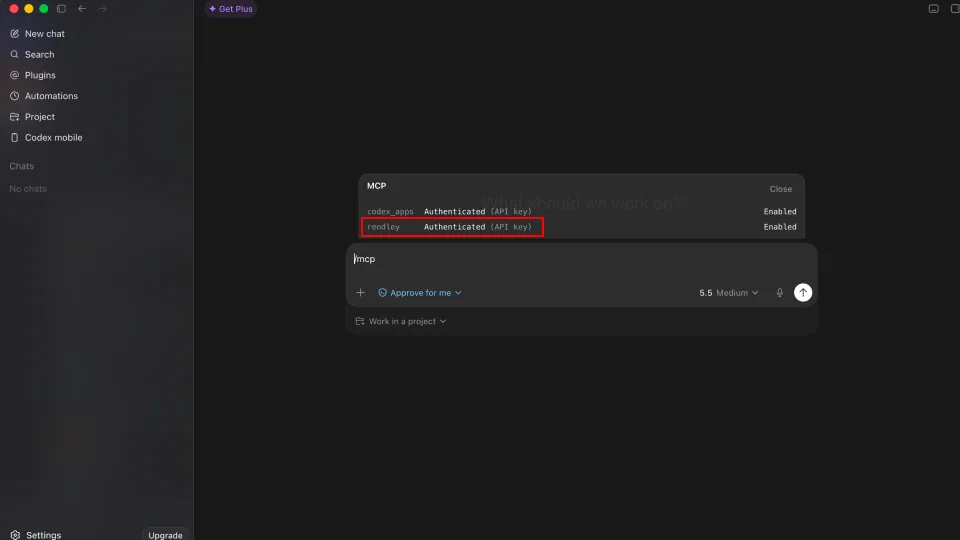
Codex CLI
Sign in with OAuth
Add the automation server, then start the Rendley sign-in flow:
codex mcp add rendley-automation --url https://mcp.rendley.com/mcp/automation
codex mcp login rendley-automation
Your browser opens Rendley. Sign in and approve access. Run codex mcp list to confirm the server is connected, or /mcp inside the Codex terminal UI to see the active tools. See the official Codex MCP documentation for the complete configuration reference.
Use an API key
The Codex CLI uses ~/.codex/config.toml. Point it at an environment variable for your key:
[mcp_servers.rendley_automation]
url = "https://mcp.rendley.com/mcp/automation"
bearer_token_env_var = "RENDLEY_API_KEY"
Then export the key, and add it to your shell profile so new sessions inherit it:
export RENDLEY_API_KEY="your_key_here"Keeping the key in an env var means a rotated key needs a new export and no config edit.
What to read next
- Connect your AI client covers the endpoint choice and the test that proves the connection.
- Authentication covers OAuth sign-in, API keys and the paid-plan gate.
- Example prompts shows what to ask ChatGPT or Codex to create.
- Troubleshooting lists the errors people hit and what fixes them.