
Authentication
There are two ways to connect, and both reach the same tools and the same workspace.
- Sign in with Rendley (recommended). The client opens a Rendley sign-in tab and you approve access. Nothing to copy, and you can revoke it later. Use this whenever your client supports it, such as Claude.
- API key. The client sends an
Authorization: Bearer YOUR_RENDLEY_API_KEYheader. Use this for clients that take a static token, such as the Codex CLI, or for your own integrations.
Sign in with Rendley
- Point the client at the endpoint:
https://mcp.rendley.com/mcp. - The client opens a tab on
app.rendley.com. Sign in and approve access. - The client stores the session. Every request is then authorized as you, with no key to manage.
Get an API key
1. Open API Keys in Settings
Sign in to Rendley and open Settings. Scroll to the API Keys section and click Create your first key (or New key if you already have one).
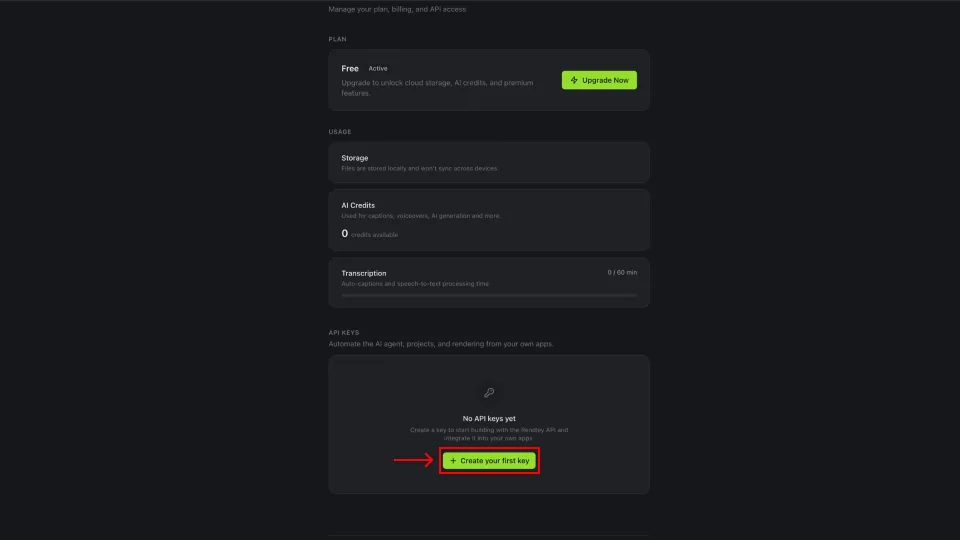
2. Name the key
Give the key a label that tells you where it’s used, like Codex CLI or Production server, then click Create key.
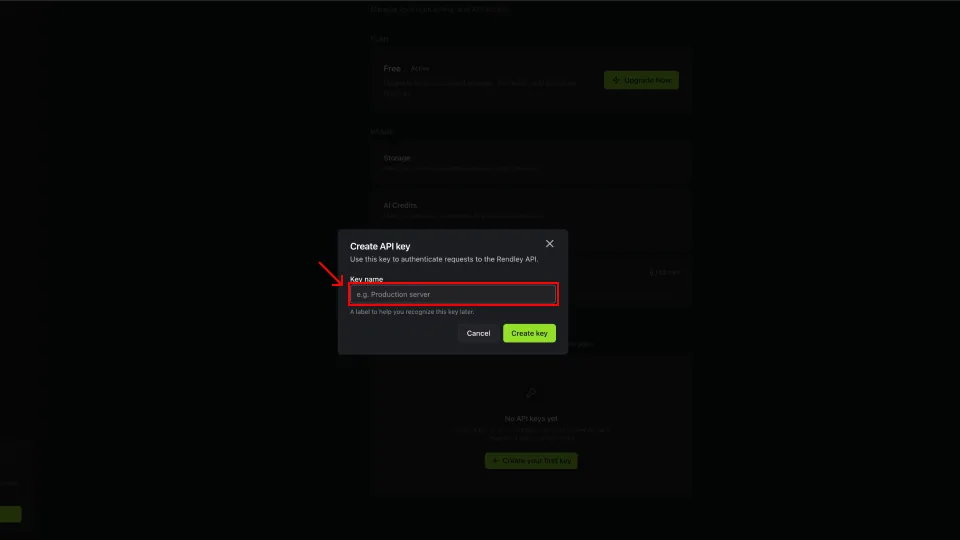
3. Copy the key
The full key is shown once. Click the copy icon and store it somewhere safe (a password manager or .env file). If you close the dialog without copying, create a new key. Rendley can’t show this one again.
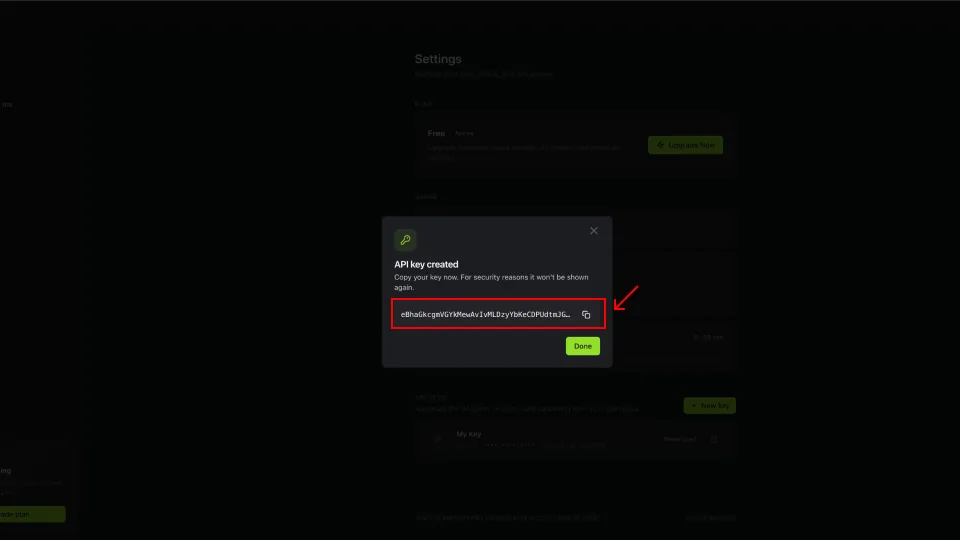
Send the key in the Authorization header on every request. The Bearer prefix (including the space) is required. The server rejects a raw token without it:
Authorization: Bearer YOUR_RENDLEY_API_KEYTreat the key like a password. Anyone holding it can drive your account and spend your credits. To rotate, create a new key, update the client, then delete the old one. Deleting a key makes every request using it return 401 immediately.
Good to know
- Access is scoped to the user who signed in or owns the key. Each teammate connects with their own.
- Review your usage and credit spend in Settings.
Hitting a 401 or a sign-in failure? See Troubleshooting.